AppleScript Action
Run AppleScript code for maximum automation power.
What It Does
The AppleScript action executes AppleScript code, giving you deep control over macOS and compatible applications. This is the most powerful action type in Radial.
AI Assistant
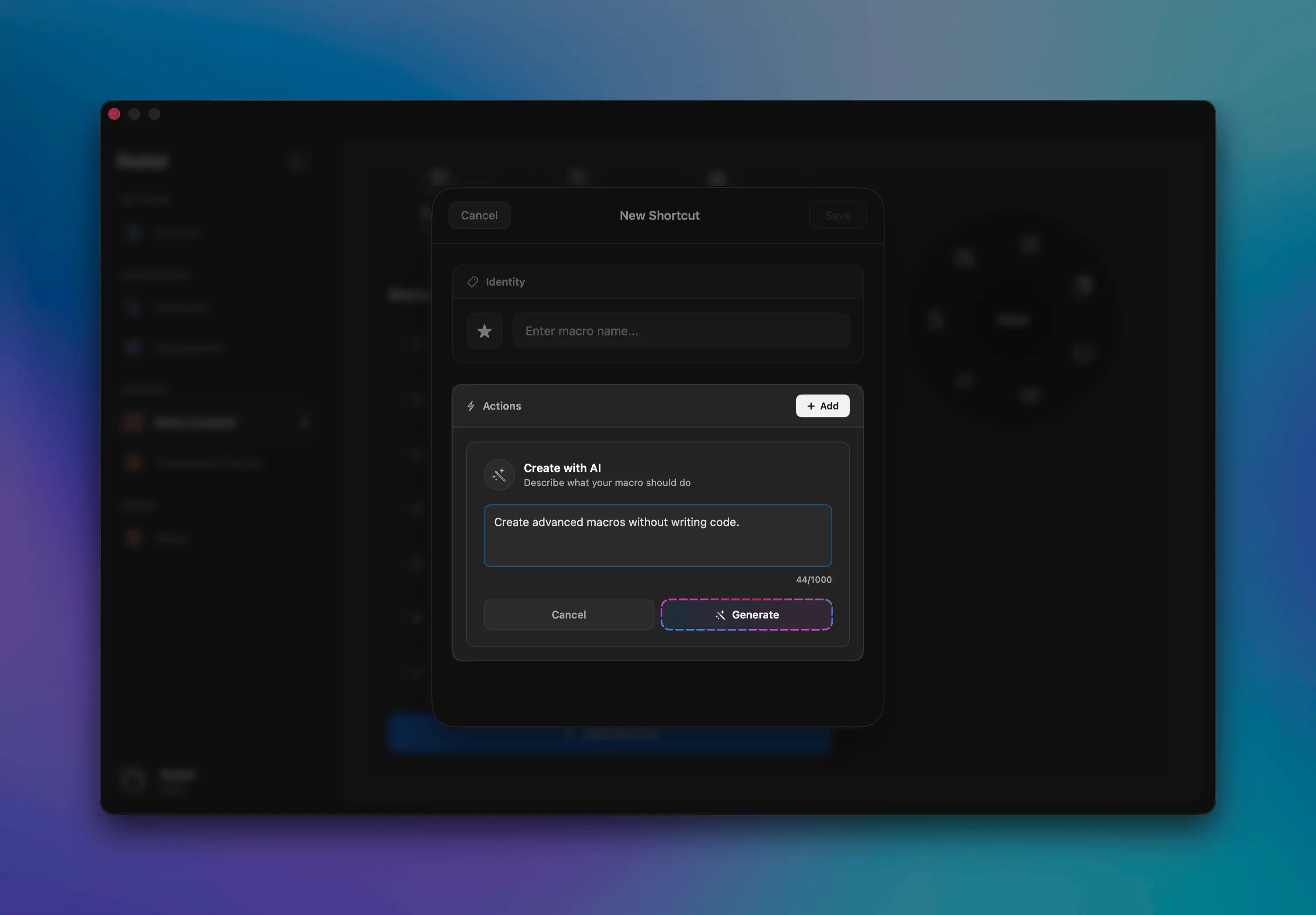
Radial includes a built-in AI assistant that can help you write AppleScript code. Simply describe what you want to automate, and the AI will generate the appropriate script for you. This is especially helpful if you're new to AppleScript or need help with complex automations.
When to Use It
Use AppleScript when you need to:
- Control apps that don't respond well to keyboard shortcuts
- Access app features not available through other actions
- Perform complex system operations
- Manipulate files and folders programmatically
- Interact with multiple apps in sophisticated ways
Configuration
Script Content — Write or paste your AppleScript code in the provided field. You can also use the built-in AI assistant to generate scripts for you.
Essential Examples
Display Alert or Notification
-- Simple alert
display alert "Task Complete!" message "Your macro finished successfully."
Get User Input
set userInput to text returned of (display dialog "Enter your name:" default answer "")
display alert "Hello, " & userInput & "!"
Choose from Options
set options to {"Option 1", "Option 2", "Option 3"}
set chosen to choose from list options with prompt "Select an option:"

if chosen is not false then
    display alert "You selected: " & (item 1 of chosen)
end if
Open Website in Safari
tell application "Safari"
    activate
    open location "https://www.apple.com"
end tell
Batch Rename Selected Finder Files
tell application "Finder"
    set selectedFiles to selection

    if (count of selectedFiles) is 0 then
        display alert "No files selected" message "Please select files to rename."
        return
    end if

    set prefix to text returned of (display dialog "Enter prefix:" default answer "renamed_")

    repeat with aFile in selectedFiles
        set name of aFile to prefix & (name of aFile)
    end repeat

    display notification "Renamed " & (count of selectedFiles) & " files" with title "Radial"
end tell
Create Text File on Desktop
set desktopPath to (path to desktop as text)
set fileName to "NewFile.txt"
set fileContent to "Created by Radial at " & (current date as text)

try
    set fileRef to open for access file (desktopPath & fileName) with write permission
    write fileContent to fileRef
    close access fileRef
    display notification "File created on Desktop!" with title "Radial"
on error errMsg
    display alert "Error" message errMsg
    try
        close access file (desktopPath & fileName)
    end try
end try
Variables
Capturing Output
Use the Capture Output button to save a script's result as a variable, which can then be used in later actions.
Using Variables as Input
Reference any variable in your script using curly braces:
display alert "Hello, {userName}"
tell application "Finder"
    open POSIX file "{filePath}"
end tell
Variables are substituted before the script runs, so you can use them anywhere in your code.
Tips
Use the AI Assistant — Let Radial's built-in AI help you write and debug AppleScript code.
Test scripts first — Run AppleScript in Script Editor (Applications > Utilities > Script Editor) before adding to Radial.
Add error handling — Wrap your code in try/catch blocks:
try
    -- your code here
on error errMsg
    display alert "Error" message errMsg
end try
App dictionaries
View all available commands for any app:
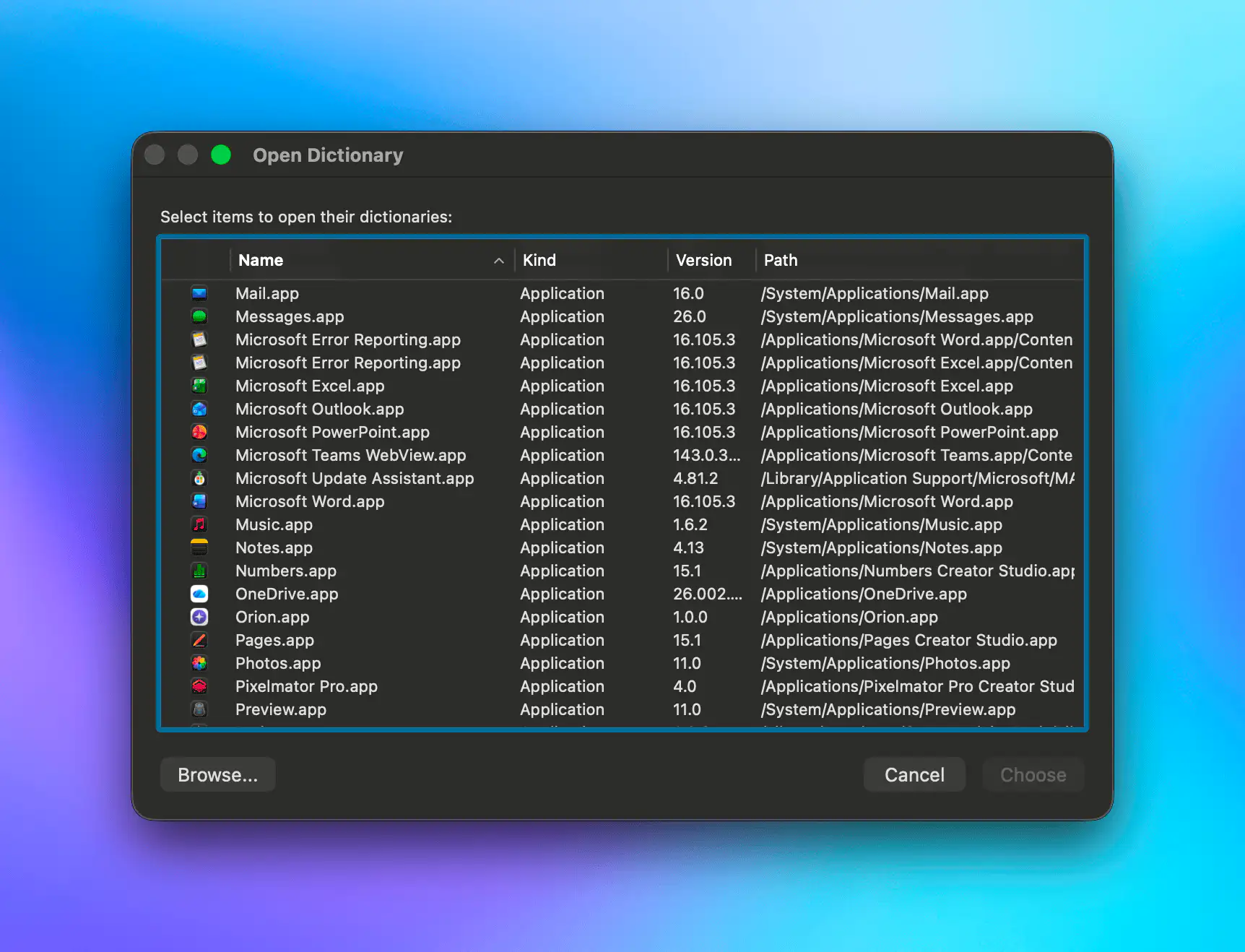
- Open Script Editor
- File > Open Dictionary
- Choose an app to see its scriptable commands