Apple Shortcuts Action
Run Apple Shortcuts directly from Radial.
What It Does
The Apple Shortcuts action lets you trigger any shortcut from the Shortcuts app, integrating your existing automations seamlessly into Radial. This bridges the power of Apple Shortcuts with Radial's quick-access interface.
When to Use It
Use Apple Shortcuts when you want to:
- Run existing shortcuts you've already created
- Access iOS-style automations on macOS
- Use Shortcuts' built-in actions and integrations
- Share shortcuts across your Apple devices
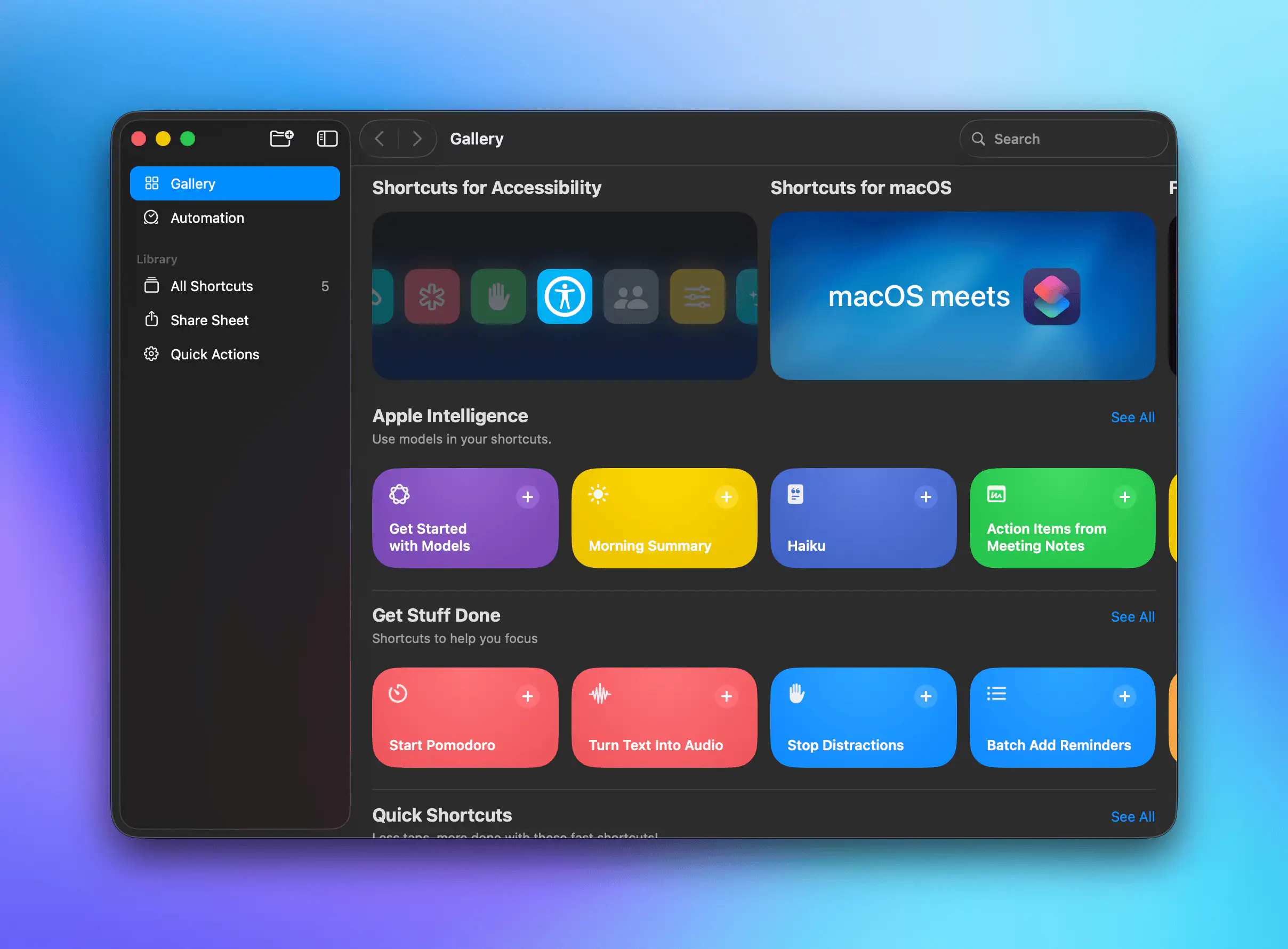
- Leverage the Shortcuts Gallery for pre-built automations
Configuration
Select Shortcut — Choose from your installed shortcuts in the dropdown menu. Radial automatically detects all shortcuts available in the Shortcuts app.
Setting Up Shortcuts
Create a Shortcut
- Open the Shortcuts app (pre-installed on macOS)
- Click the + button to create a new shortcut
- Add actions by searching or browsing categories
- Name your shortcut
- The shortcut will automatically appear in Radial
Troubleshooting
Shortcut not appearing? — Make sure the shortcut is saved in the Shortcuts app. Restart Radial if needed.
Permission errors? — Check System Settings > Privacy & Security to ensure Shortcuts and Radial have necessary permissions.
Shortcut fails silently? — Open Shortcuts app and run the shortcut directly to see any error messages.
Learn More
Shortcuts User Guide — Apple's official Shortcuts documentation
Shortcuts Gallery — Open Shortcuts app and browse the Gallery for pre-built automations