Advanced Workflows
Build sophisticated macros and automate your life with complex sequences.
What Makes a Workflow Advanced?
Advanced workflows combine multiple actions, handle edge cases, and often use AppleScript or Shortcuts for capabilities beyond basic actions. They automate complete tasks from start to finish, not just individual steps.
Real-World Examples
Copy File Paths (Finder)
Quickly copy file paths in different formats with a single macro.
tell application "Finder"
    set selectedItems to selection as alias list

    if (count of selectedItems) is 0 then
        -- No selection, copy current directory path instead
        try
            set currentFolder to target of front window as alias
            set currentPath to POSIX path of currentFolder
            set the clipboard to currentPath
            display notification currentPath with title "Directory Path Copied"
            return
        on error
            display dialog "No files selected and no Finder window open." buttons {"OK"} default button 1
            return
        end try
    end if

    -- Show path format menu
    set pathChoice to choose from list {"Full Path", "Filename Only", "Parent Folder Path", "All Paths (List)"} with prompt "Copy path as:" default items {"Full Path"} with title "Copy Path"

    if pathChoice is false then return

    set chosenFormat to item 1 of pathChoice

    if chosenFormat is "Full Path" then
        set theItem to item 1 of selectedItems
        set thePath to POSIX path of (theItem as alias)
        set the clipboard to thePath
        display notification thePath with title "Path Copied"

    else if chosenFormat is "Filename Only" then
        set theItem to item 1 of selectedItems
        set theName to name of theItem
        set the clipboard to theName
        display notification theName with title "Filename Copied"

    else if chosenFormat is "Parent Folder Path" then
        set theItem to item 1 of selectedItems
        set parentFolder to container of theItem
        set thePath to POSIX path of (parentFolder as alias)
        set the clipboard to thePath
        display notification thePath with title "Parent Path Copied"

    else if chosenFormat is "All Paths (List)" then
        set pathList to ""
        repeat with theItem in selectedItems
            set thePath to POSIX path of (theItem as alias)
            set pathList to pathList & thePath & return
        end repeat
        set the clipboard to pathList
        display notification "Copied " & (count of selectedItems) & " paths" with title "Paths Copied"
    end if
end tell
Create Aliases (Finder)
Create file aliases in various locations with one action.
tell application "Finder"
    set selectedItems to selection as alias list

    if (count of selectedItems) is 0 then
        display dialog "Please select one or more files or folders to create aliases." buttons {"OK"} default button 1
        return
    end if

    -- Ask where to create aliases
    set locationChoice to choose from list {"Same Folder", "Desktop", "Choose Folder..."} with prompt "Where to create aliases?" default items {"Same Folder"} with title "Make Alias"

    if locationChoice is false then return

    set chosenLocation to item 1 of locationChoice

    if chosenLocation is "Same Folder" then
        set targetFolder to container of item 1 of selectedItems
    else if chosenLocation is "Desktop" then
        set targetFolder to path to desktop folder
    else
        set targetFolder to choose folder with prompt "Select destination for aliases:"
    end if

    -- Create aliases
    set aliasCount to 0
    repeat with theItem in selectedItems
        try
            make new alias file at targetFolder to theItem
            set aliasCount to aliasCount + 1
        end try
    end repeat

    display notification "Created " & aliasCount & " alias(es)" with title "Aliases Created"

    -- Open the target folder
    open targetFolder
end tell
Quick File Creator (Finder)
Create new files with templates directly in your current Finder location.
tell application "Finder"
    try
        set currentFolder to target of front window as alias
    on error
        -- If no window is open, use Desktop
        set currentFolder to path to desktop folder
    end try

    -- Show file type menu
    set fileChoice to choose from list {"Text File (.txt)", "Markdown (.md)", "HTML File (.html)", "CSS File (.css)", "JavaScript (.js)", "Python (.py)", "Shell Script (.sh)", "JSON (.json)", "Custom Extension..."} with prompt "Create new file:" default items {"Text File (.txt)"} with title "New File Creator"

    if fileChoice is false then return

    set chosenType to item 1 of fileChoice

    -- Get filename
    set fileName to text returned of (display dialog "Enter filename:" default answer "untitled" buttons {"Cancel", "Create"} default button 2 with title "New File")

    if fileName is "" then
        set fileName to "untitled"
    end if

    -- Determine extension and content
    if chosenType is "Text File (.txt)" then
        set fileExt to ".txt"
        set fileContent to ""
    else if chosenType is "Markdown (.md)" then
        set fileExt to ".md"
        set fileContent to "# " & fileName & return & return
    else if chosenType is "HTML File (.html)" then
        set fileExt to ".html"
        set fileContent to "<!DOCTYPE html>" & return & "<html lang=\"en\">" & return & "<head>" & return & "    <meta charset=\"UTF-8\">" & return & "    <title>" & fileName & "</title>" & return & "</head>" & return & "<body>" & return & "    " & return & "</body>" & return & "</html>"
    else if chosenType is "CSS File (.css)" then
        set fileExt to ".css"
        set fileContent to "/* " & fileName & " */" & return & return
    else if chosenType is "JavaScript (.js)" then
        set fileExt to ".js"
        set fileContent to "// " & fileName & return & return
    else if chosenType is "Python (.py)" then
        set fileExt to ".py"
        set fileContent to "#!/usr/bin/env python3" & return & "# " & fileName & return & return
    else if chosenType is "Shell Script (.sh)" then
        set fileExt to ".sh"
        set fileContent to "#!/bin/bash" & return & "# " & fileName & return & return
    else if chosenType is "JSON (.json)" then
        set fileExt to ".json"
        set fileContent to "{" & return & "  " & return & "}"
    else -- Custom Extension
        set fileExt to text returned of (display dialog "Enter file extension (with dot, e.g., .xml):" default answer ".txt" buttons {"Cancel", "Create"} default button 2)
        set fileContent to ""
    end if

    -- Add extension if not already present
    if fileName does not end with fileExt then
        set fileName to fileName & fileExt
    end if

    -- Create the file
    set filePath to (currentFolder as text) & fileName

    try
        set fileRef to open for access file filePath with write permission
        write fileContent to fileRef
        close access fileRef

        -- Select the new file
        select file fileName of currentFolder

        display notification "Created: " & fileName with title "New File Created"
    on error errMsg
        try
            close access file filePath
        end try
        display dialog "Error creating file: " & errMsg buttons {"OK"} default button 1
    end try
end tell
Clear Formatting in Word
Strip all formatting from selected text.
-- Cut selection
tell application "System Events"
    keystroke "x" using {command down}
end tell

delay 0.1

-- Read clipboard as plain text (strips formatting)
set plainText to the clipboard as text

-- Put plain text back on clipboard
set the clipboard to plainText

delay 0.1

-- Paste back
tell application "System Events"
    keystroke "v" using {command down}
end tell
Batch File Renamer
Advanced batch renaming of multiple files.
tell application "Finder"
    set selectedItems to selection as alias list

    if (count of selectedItems) is 0 then
        display dialog "Please select one or more files to rename." buttons {"OK"} default button 1
        return
    end if

    -- Show rename options
    set renameAction to choose from list {"Add Prefix", "Add Suffix", "Replace Text", "Add Numbers", "Add Date"} with prompt "Select renaming action for " & (count of selectedItems) & " file(s):" default items {"Add Prefix"} with title "Batch Rename"

    if renameAction is false then return

    set chosenAction to item 1 of renameAction

    if chosenAction is "Add Prefix" then
        set prefixText to text returned of (display dialog "Enter prefix:" default answer "" buttons {"Cancel", "Apply"} default button 2)

        repeat with theFile in selectedItems
            set fileName to name of theFile
            set name of theFile to prefixText & fileName
        end repeat

    else if chosenAction is "Add Suffix" then
        set suffixText to text returned of (display dialog "Enter suffix:" default answer "" buttons {"Cancel", "Apply"} default button 2)

        repeat with theFile in selectedItems
            set fileName to name of theFile

            -- Get file extension
            if fileName contains "." then
                set AppleScript's text item delimiters to "."
                set nameItems to text items of fileName
                set fileExt to "." & item -1 of nameItems
                set baseName to (items 1 thru -2 of nameItems) as text
                set AppleScript's text item delimiters to ""
            else
                set baseName to fileName
                set fileExt to ""
            end if

            set name of theFile to baseName & suffixText & fileExt
        end repeat

    else if chosenAction is "Replace Text" then
        set findText to text returned of (display dialog "Find what:" default answer "" buttons {"Cancel", "Next"} default button 2)
        set replaceWith to text returned of (display dialog "Replace with:" default answer "" buttons {"Cancel", "Apply"} default button 2)

        repeat with theFile in selectedItems
            set fileName to name of theFile

            if fileName contains findText then
                set AppleScript's text item delimiters to findText
                set textItems to text items of fileName
                set AppleScript's text item delimiters to replaceWith
                set newName to textItems as text
                set AppleScript's text item delimiters to ""

                set name of theFile to newName
            end if
        end repeat

    else if chosenAction is "Add Numbers" then
        set counter to 1
        repeat with theFile in selectedItems
            set fileName to name of theFile

            -- Get file extension
            if fileName contains "." then
                set AppleScript's text item delimiters to "."
                set nameItems to text items of fileName
                set fileExt to "." & item -1 of nameItems
                set baseName to (items 1 thru -2 of nameItems) as text
                set AppleScript's text item delimiters to ""
            else
                set baseName to fileName
                set fileExt to ""
            end if

            set name of theFile to baseName & " " & counter & fileExt
            set counter to counter + 1
        end repeat

    else if chosenAction is "Add Date" then
        set currentDate to do shell script "date +%Y-%m-%d"

        repeat with theFile in selectedItems
            set fileName to name of theFile

            -- Get file extension
            if fileName contains "." then
                set AppleScript's text item delimiters to "."
                set nameItems to text items of fileName
                set fileExt to "." & item -1 of nameItems
                set baseName to (items 1 thru -2 of nameItems) as text
                set AppleScript's text item delimiters to ""
            else
                set baseName to fileName
                set fileExt to ""
            end if

            set name of theFile to baseName & " " & currentDate & fileExt
        end repeat
    end if

    display notification "Successfully renamed " & (count of selectedItems) & " file(s)" with title "Batch Rename Complete"
end tell
Development Environment Launcher
Open your entire development setup with one macro.
1. AppleScript → Open VS Code with project:

tell application "Visual Studio Code"
    activate
    delay 1
end tell

2. Delay → 2 seconds

3. AppleScript → Start terminal and run servers:

tell application "Terminal"
    activate
    do script "cd ~/Projects/my-project && npm start"
end tell

4. Delay → 3 seconds

5. Open URL → http://localhost:3000
Building Effective Workflows
Start Simple
Begin with basic actions and test each step before adding complexity.
Use Delays Wisely
- Start with longer delays (1-2 seconds)
- Reduce gradually as you test
- Apps need time to launch and respond
Add Error Handling
Wrap critical operations in try-catch blocks:
try
    -- your automation here
on error errMsg
    display notification errMsg with title "Error"
end try
Test Thoroughly
- Test with different file types
- Test with no selection
- Test when apps aren't running
- Test edge cases
Document Your Macros
Add comments explaining what each step does, especially for complex workflows you'll revisit later.
Tips for Advanced Automation
Combine action types — Mix keyboard shortcuts, AppleScript, and Shortcuts for maximum flexibility.
Use app-specific macros — Create workflows that only appear in relevant apps for cleaner organization.
Build incrementally — Add one action at a time and test before continuing.
Keep backups — Duplicate working macros before modifying them.
Using AI to Build Workflows

Radial includes a built-in AI assistant specialized for creating macros efficiently. Whether you're new to automation or need help with complex AppleScript, the AI assistant can generate workflows based on your natural language descriptions.
Learn more: AI Assistant Guide
Sharing Your Workflows with the Community
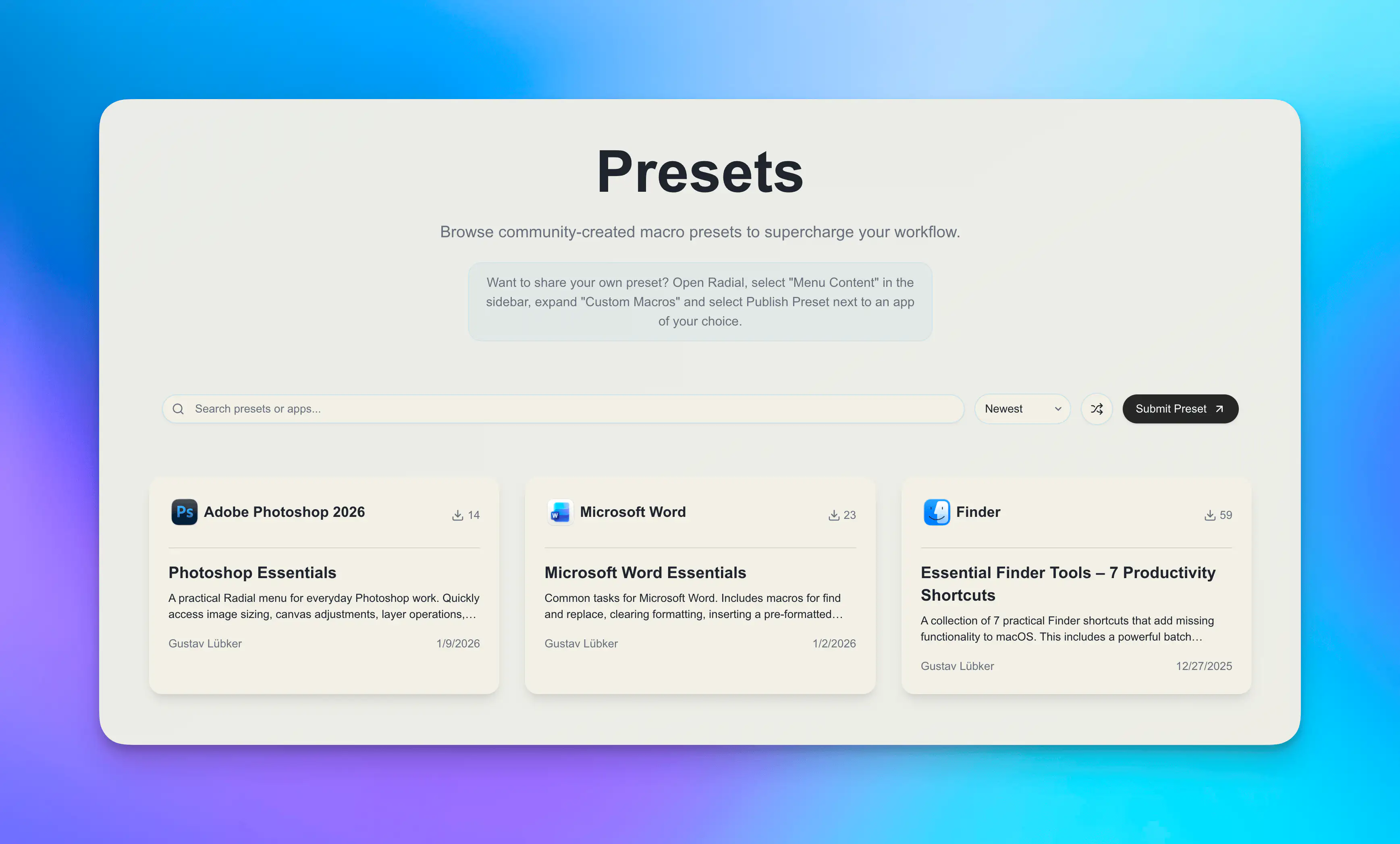
Once you've built a useful set of macros for a specific app, we encourage you to share it with the Radial community! When you upload your workflow to our preset gallery, others can discover and install it with one click, saving them hours of setup time.
Benefits of sharing:
- Help other users get started faster
- Get recognized and featured on our website
- Inspire others with your creative automation ideas
- Build your reputation in the community
- Receive feedback and improvements from other users
Get inspired or share your work:
Whether you've created a comprehensive workflow for creative designers, a developer productivity setup, or a simple set of frequently used keyboard shortcuts, your contribution helps make Radial better for everyone.