Basic Usage
Learn how to activate and navigate the radial menu.
Activating the Menu
There are two ways to bring up the radial menu.
Hold a modifier key — Press and hold your chosen modifier key (default: Control) to display the menu. Release to dismiss it.
Keyboard shortcut — Press your configured keyboard shortcut to toggle the menu on and off.
You can choose how you wish to open the Radial menu from the Activation page in the sidebar. Furthermore, you can configure an activation delay and enable double-click to trigger if you wish.
Using the Menu
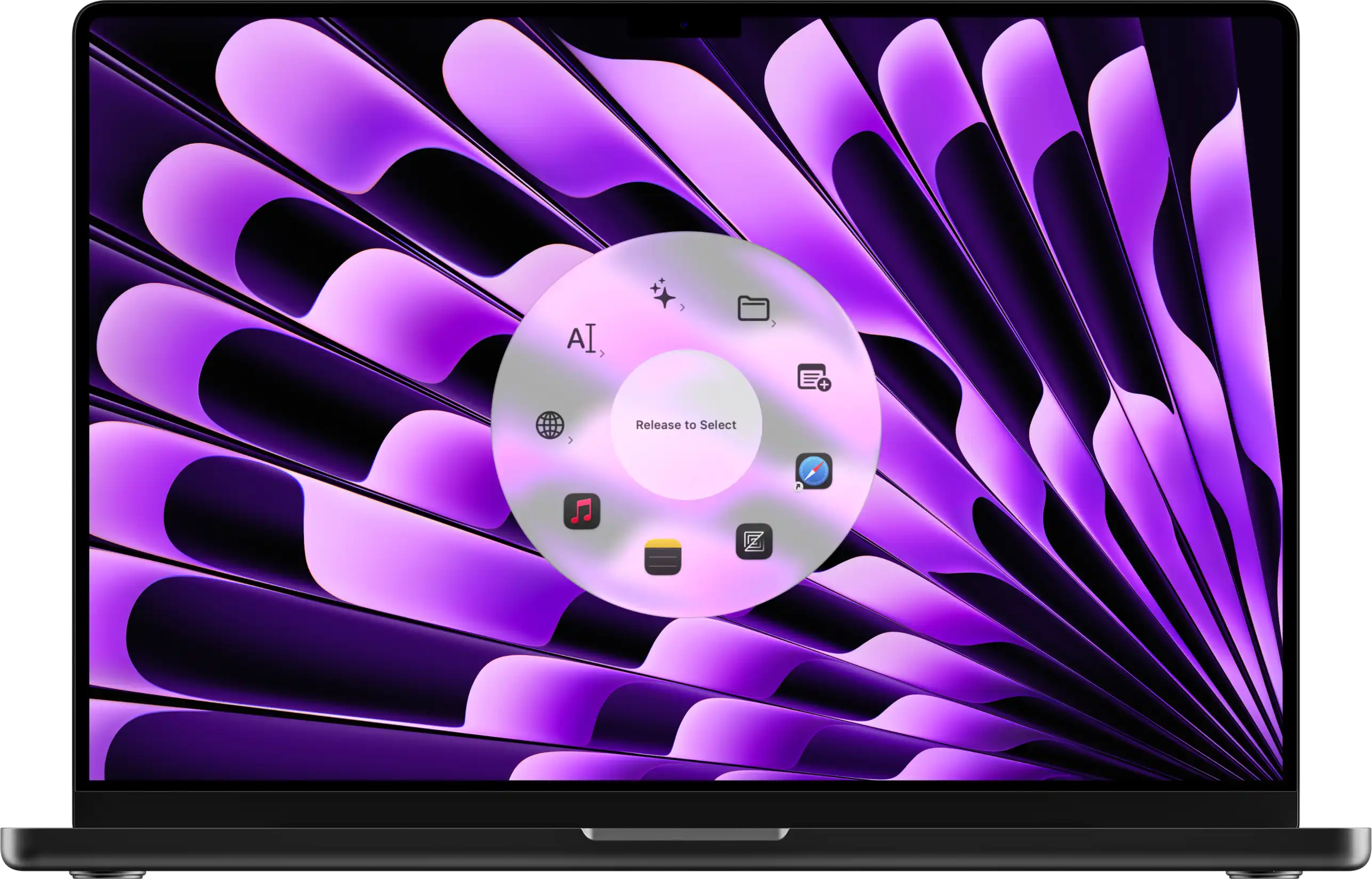
Once the menu appears at your cursor:
- Move your mouse toward the action you want to trigger
- Release the modifier key to execute the action, or if you used the keyboard shortcut to open the menu, press Enter or click to select the action
- The menu disappears and your shortcut runs
That's it. One gesture, and your multi-step workflow is complete.
Context-Aware Behavior
Radial can automatically adapt to the app you're using, and show a corresponding menu specific to that app.
- Open Photoshop → See your Photoshop actions
- Switch to Premiere Pro → See your video editing tools
- Switch to VS Code → See your code snippets and terminal commands
- Open Finder → See your file management shortcuts
This context awareness means you only see what's relevant to what you're doing right now. You can also configure a global menu that applies to any app. This is commonly used for window management or app launching.