Browse Community Presets
Discover and install ready-made Radial menus and shortcuts created by other users. Get inspired, save time on setup, or share your own presets with the community.
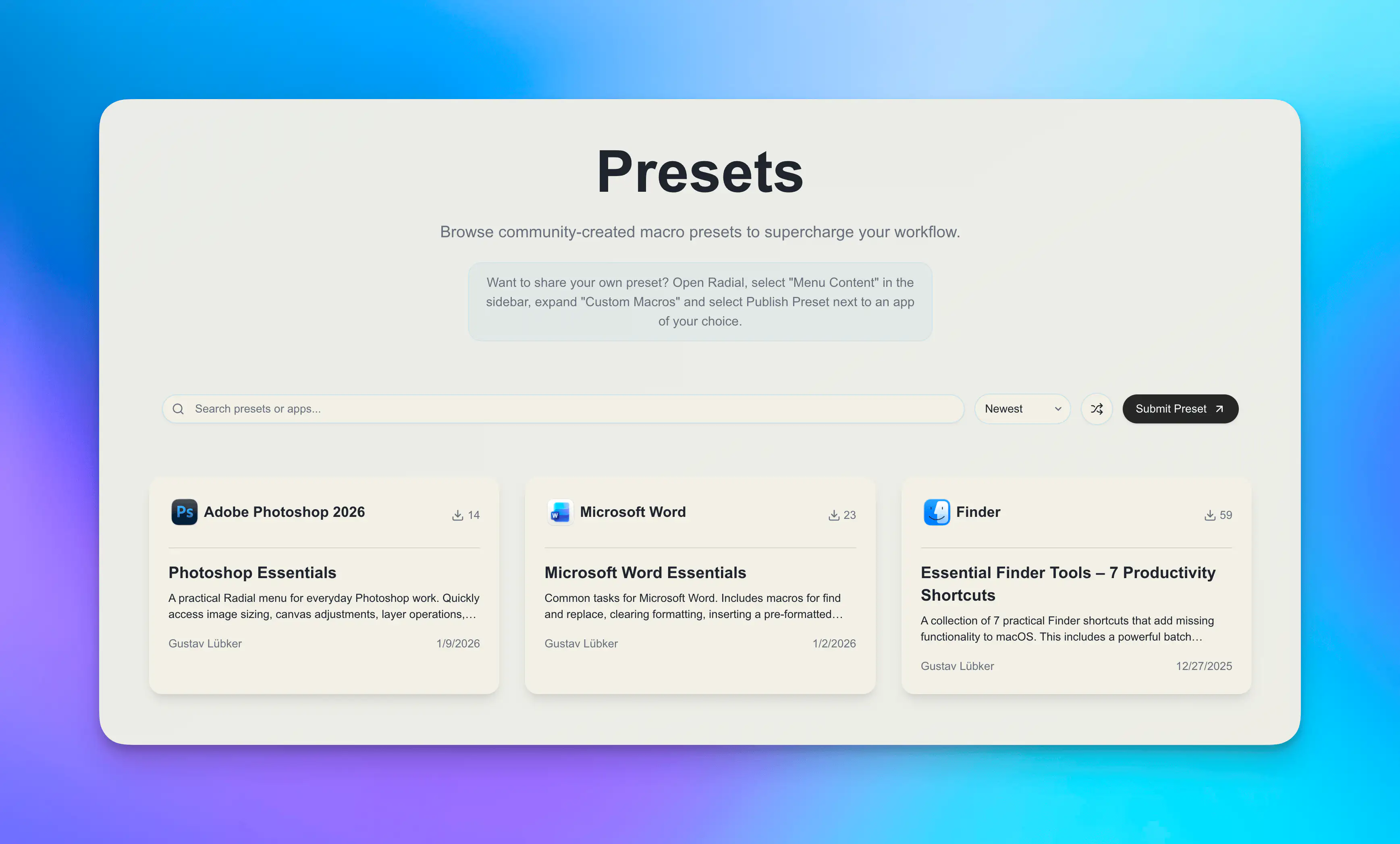
What Are Community Presets?
Community presets are complete Radial menu configurations designed for specific apps. Each one can include up to 9 macros tailored for that application, and they install with a single click.
Browse what others have built, install instantly, and start using them right away with no setup required.
Featured Presets
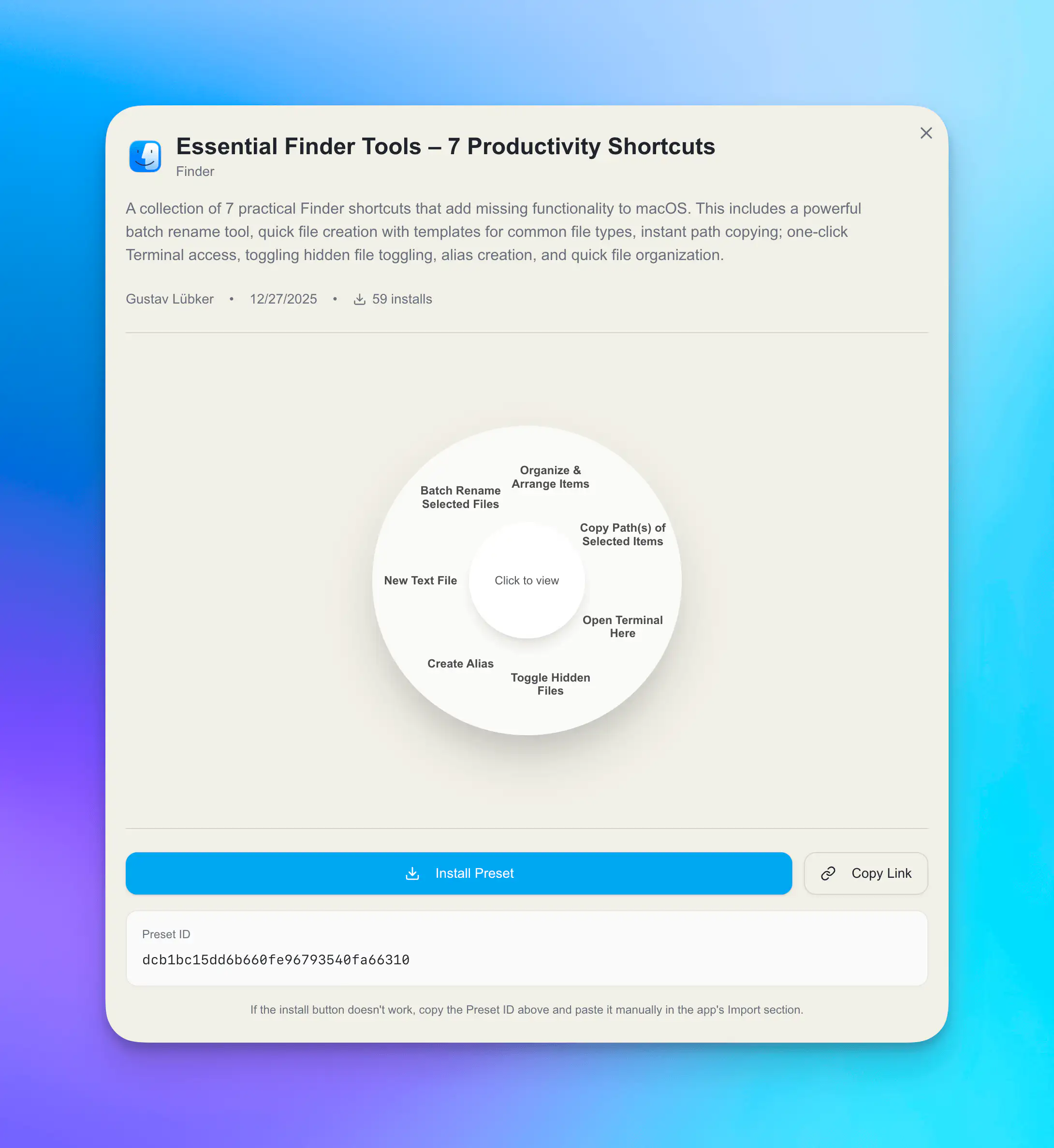
Essential Finder Tools
7 practical macros that add missing functionality to macOS Finder: batch rename, quick file creation with templates, instant path copying, one-click Terminal access, hidden file visibility toggle, alias creation, and smart file organization.
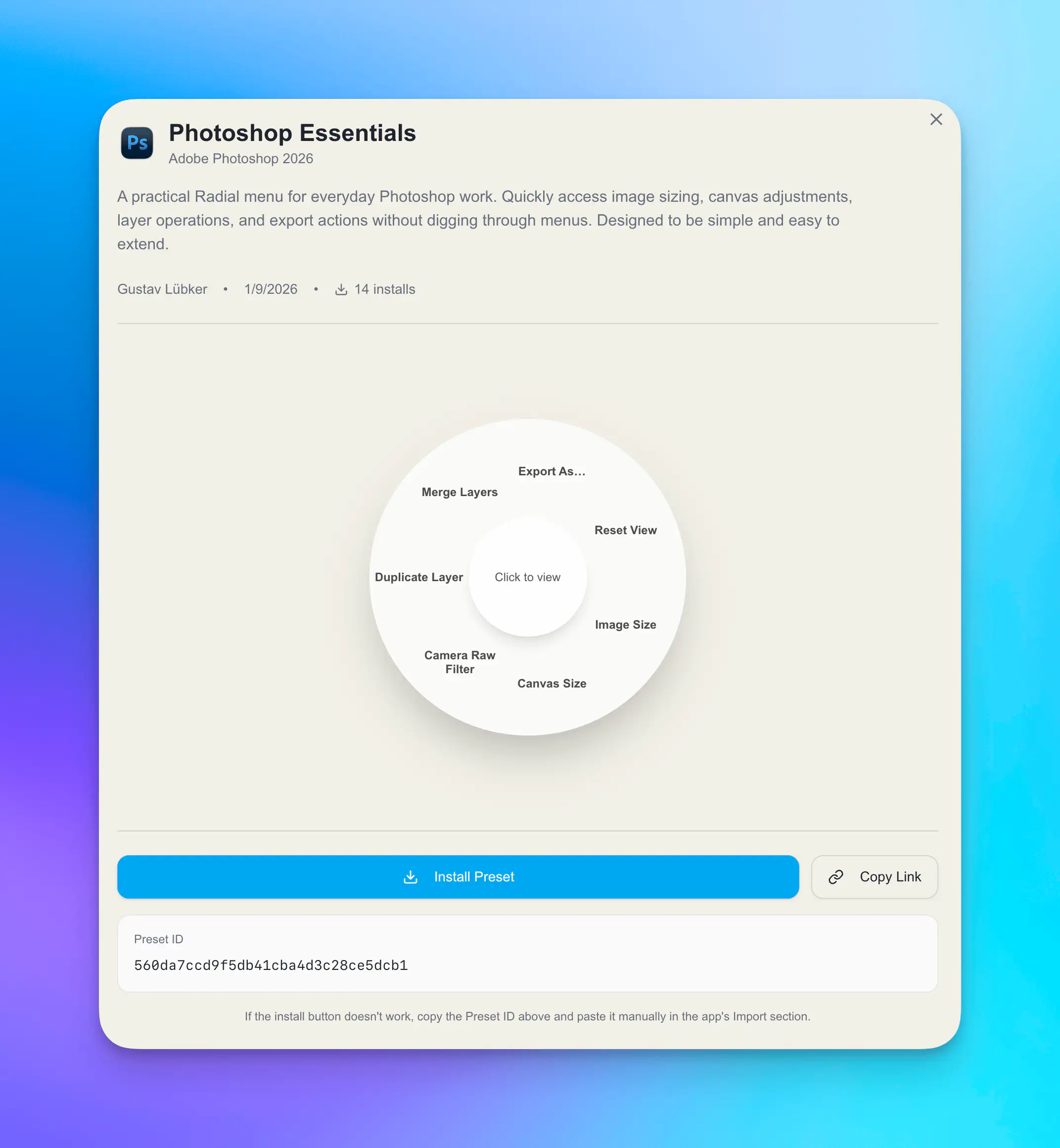
Adobe Photoshop: Essentials
Everything you need for everyday Photoshop work. Quick access to image sizing, canvas adjustments, layer operations, and export actions without searching through menus.
All Presets
Browse the full collection at radial.appverge.net/presets. New presets automatically appear as users share their creations.
Installing a Preset
From the App
- Open Radial settings
- Go to the Discover tab
- Browse available presets
- Click Install on any preset
- Done. Find it under the Menu Content tab
From the Website
- Visit radial.appverge.net/presets
- Click Install Preset on any preset you like
- Your browser will ask to open Radial. Accept to complete installation
- The preset will install automatically and can be found under the Menu Content tab
If automatic installation doesn't work, copy the preset ID and paste it in the app's Menu Content tab to install manually.
Using Installed Presets
Once installed:
- Open the target app — If you installed a Photoshop preset, open Photoshop. Make sure the preset is compatible with your app version.
- Open the Radial menu — Use your keyboard shortcut to open Radial
- Test each macro — Try them out to see what they do
- Adjust to your needs — Customize any macro to match your exact workflow
Customizing Presets
Every preset can be modified to fit your needs:
Add more macros — Presets with fewer than 9 macros have room for your own additions
Edit existing macros — Change file paths, keyboard shortcuts, text snippets, or scripts
Remove macros you don't need — Keep your menu focused on what you actually use
Reorder macros — Rearrange shortcuts to fit your workflow
Sharing Your Presets
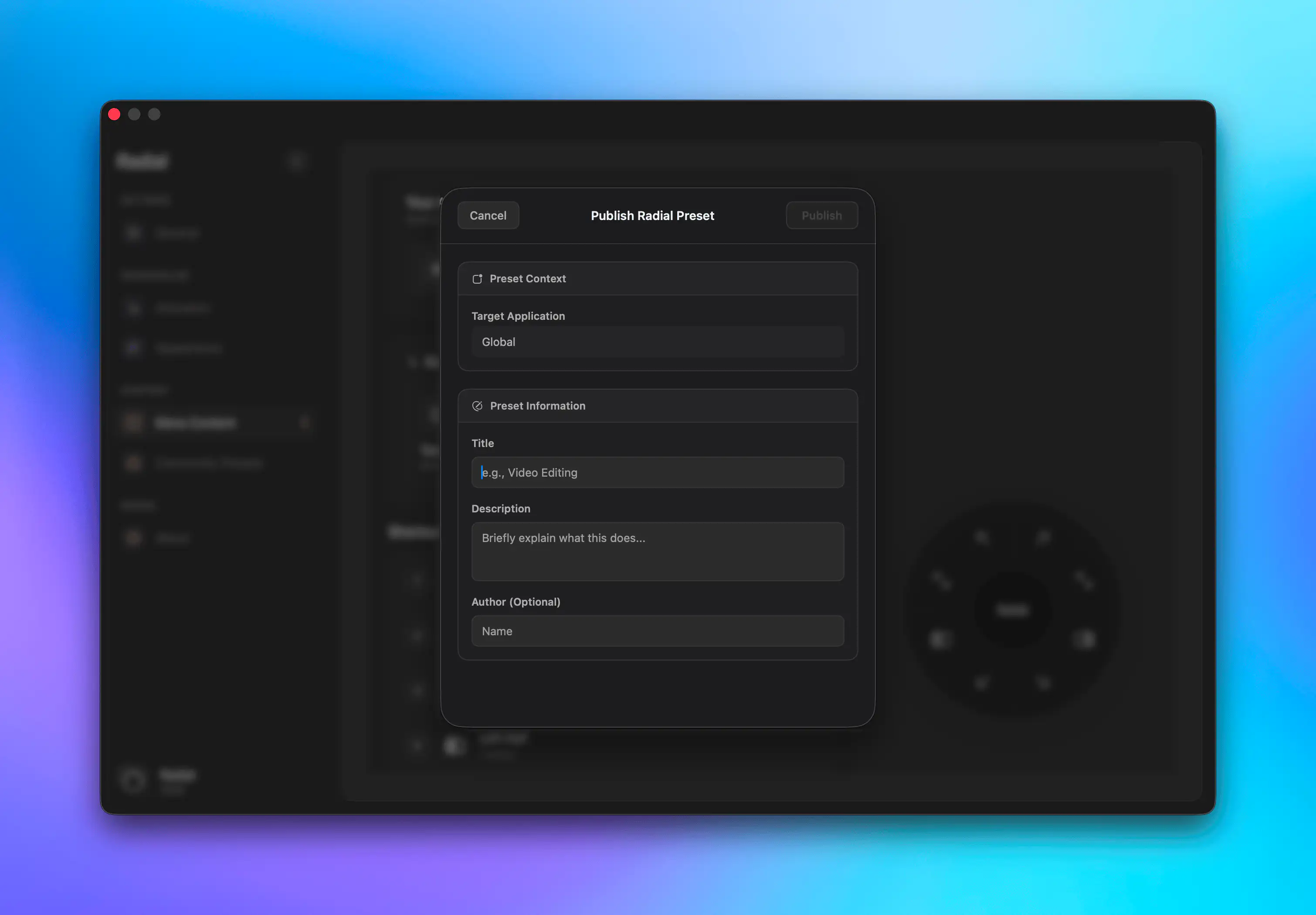
Built something useful? Share it with the community. Your preset will be featured on the website for others to discover and install.
To share: select Share from the Menu Content tab, fill out the short form, and publish. Your preset appears on radial.appverge.net/presets instantly.
Why Share?
You've spent time creating macros that save you hours. Others could benefit from your work. Sharing workflows:
- Helps the community
- Inspires others to create their own
- Lets you get feedback on your approach
- Establishes you as a contributor
Preset Ideas Worth Sharing
Consider creating and sharing workflows for:
- Missing macOS Features
- Creative Design Presets
- Development Shortcuts
- System Automations
- Writing templates
Recognition
Popular presets get:
- Featured on the website
- Higher visibility in the app
- Installation count displayed
- Creator attribution