Creating Your First Shortcut
A shortcut is a sequence of actions that runs when you select it from the radial menu. Let's create a simple one.
Open the Settings
- Click the Radial icon in your menu bar
- Select Settings...
- Navigate to the Menu Content tab in the sidebar
Choose Your Target
Decide where this shortcut should appear:
- Global — Available everywhere on macOS regardless of which app is active
- Specific app — Only appears when that app is active (e.g., Photoshop, Finder, Safari)
For simplicity, let's create a global one.
Create the Shortcut
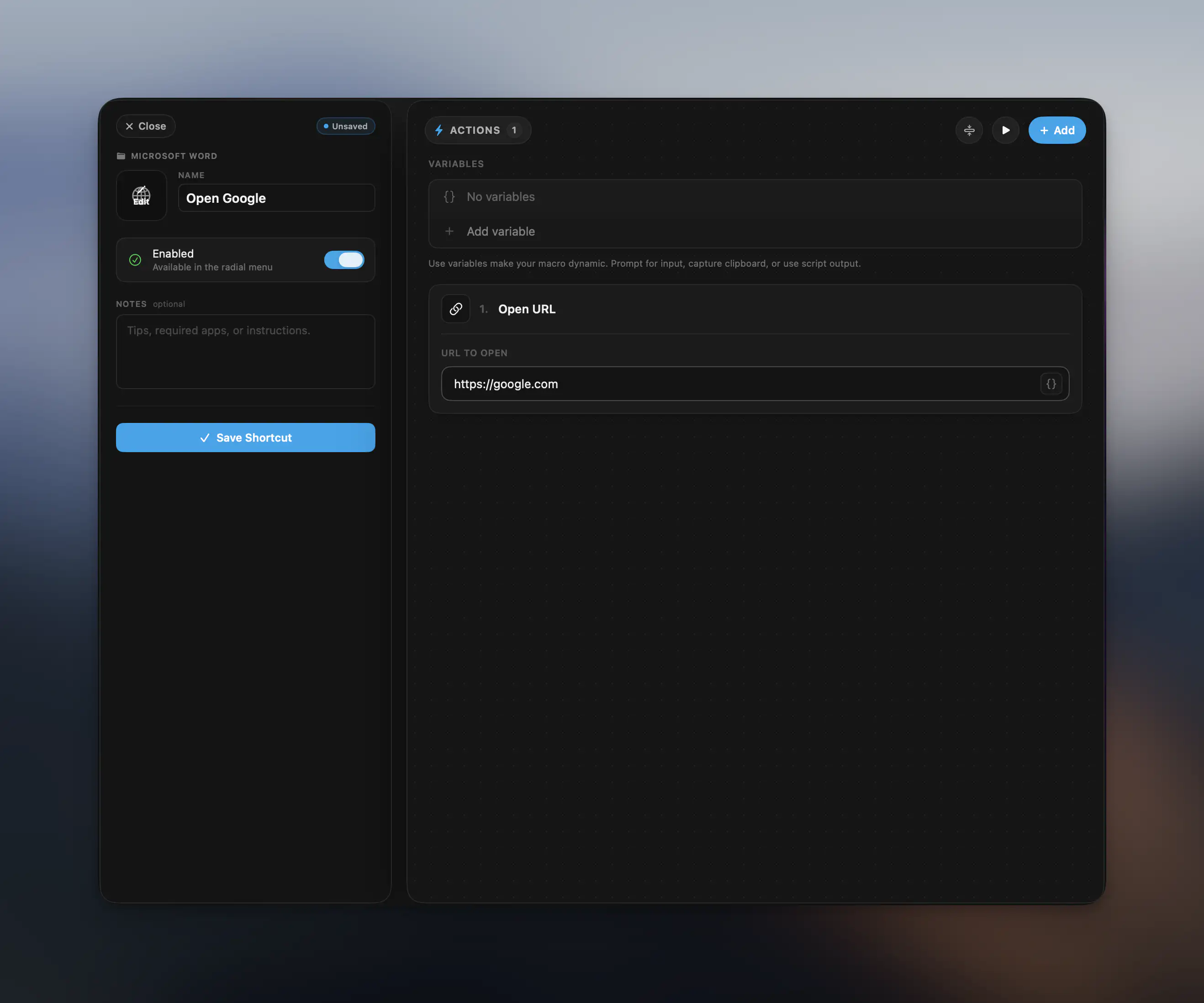
- Choose Global (or select a specific app if you prefer). If Global does not appear, first select New App and choose Global
- Scroll down and click the Add Shortcut button
- Give your shortcut a name and choose an icon. For this guide, we'll call it "Open Google" since it will open google.com when triggered
- Select "Add" to create your first action. A dropdown will appear with a list of available actions. This shortcut will use Open URL:
- Keyboard Shortcut - Simulate any keyboard shortcut and key press.
- Type Text - Type predefined text where the cursor is. (Can also include dynamic variables and emojis)
- Clipboard - Basic clipboard operations: Copy text, paste clipboard, clear clipboard
- Open App - Launch any application
- Open File - Open a file on your computer
- Open URL - Open a predefined website
- Apple Shortcut - Run an Apple Shortcut
- Apple Script - Use Apple Script for more advanced actions
- Shell Script - Run a Terminal command or shell script
- Keyboard Maestro - Run a Keyboard Maestro macro
- AI - Powerful AI actions like summarize, rewrite, generate text, extract data and more
- Window Management - Quick window alignment options
- System Control - Trigger native macOS system actions
- Window Layout - Define full window layouts to instantly open and align windows
- Notification - Send macOS notifications with custom text
- Visual Effect - Play a visual effect on the screen like confetti, text overlay or screen flash
- Text to Speech - Read specified or selected text out loud
- Delay - Wait a predefined delay before continuing to the next action
- Sub-Menu - Open another Radial menu programmatically, as a sub-menu
- For this shortcut, select Open URL and enter the website https://google.com
- Save the shortcut
Test It
- Close the Radial settings menu to ensure your shortcut runs smoothly
- Activate the radial menu using your predefined activation method. If you are unsure about this, head back to the Basic Usage section for help.
- Move the mouse towards your new macro and release to run it
- Your browser of choice should automatically open and navigate to google.com
That's your first shortcut. Shortcuts can of course be anything as simple as this such as launching apps or opening files to much more advanced macros making use of multiple sequential actions or Apple Script. An example of this is the Batch Rename shortcut found in the Essential Finder Tools preset.