Customization
Tailor Radial to match your workflow and preferences.
Menu Activation
Control how you bring up the radial menu.
Modifier Keys (Hold)
Press and hold a modifier key to display the menu. Release to dismiss it.
Available modifiers:
- ⌥ Option
- ⌘ Command
- ⌃ Control
- ⇪ Caps Lock
- fn Function
- ⌃ Control + ⌥ Option
- ⌃ Control + ⌘ Command
- ⌘ Command + ⌥ Option
- ⌃ Control + ⌥ Option + ⌘ Command
- ⌃ Control + ⌥ Option + ⇧ Shift
- ⌃ Control + ⌥ Option + ⇧ Shift + ⌘ Command
- fn Function + ⌃ Control
- fn Function + ⌥ Option
- fn Function + ⌘ Command
Configure: Settings > Menu Trigger > Modifier Key > Select Modifier Key
Keyboard Shortcut (Toggle)
Press a keyboard shortcut to toggle the menu on and off.
Example shortcuts:
- ⌘ Command + Space (if not used by Spotlight)
- ⌃ Control + Space
- ⌥ Option + Space
- Custom combination of your choice
Configure: Settings > Menu Trigger > Keyboard Shortcut > Record Shortcut
Hot Corner (Toggle)
Automatically open the Radial menu when your cursor moves to a specified screen corner.
Configure: Settings > Menu Trigger > Hot Corner
Shake to Open (Toggle)
Rapidly shake your cursor to open the Radial menu. Intensity can be configured.
Configure: Settings > Menu Trigger > Shake to Open
Mouse Button (Toggle)
Click a mouse button to open the Radial menu.
Configure: Settings > Menu Trigger > Mouse Button
Menu Appearance
Customize how the radial menu looks and feels.
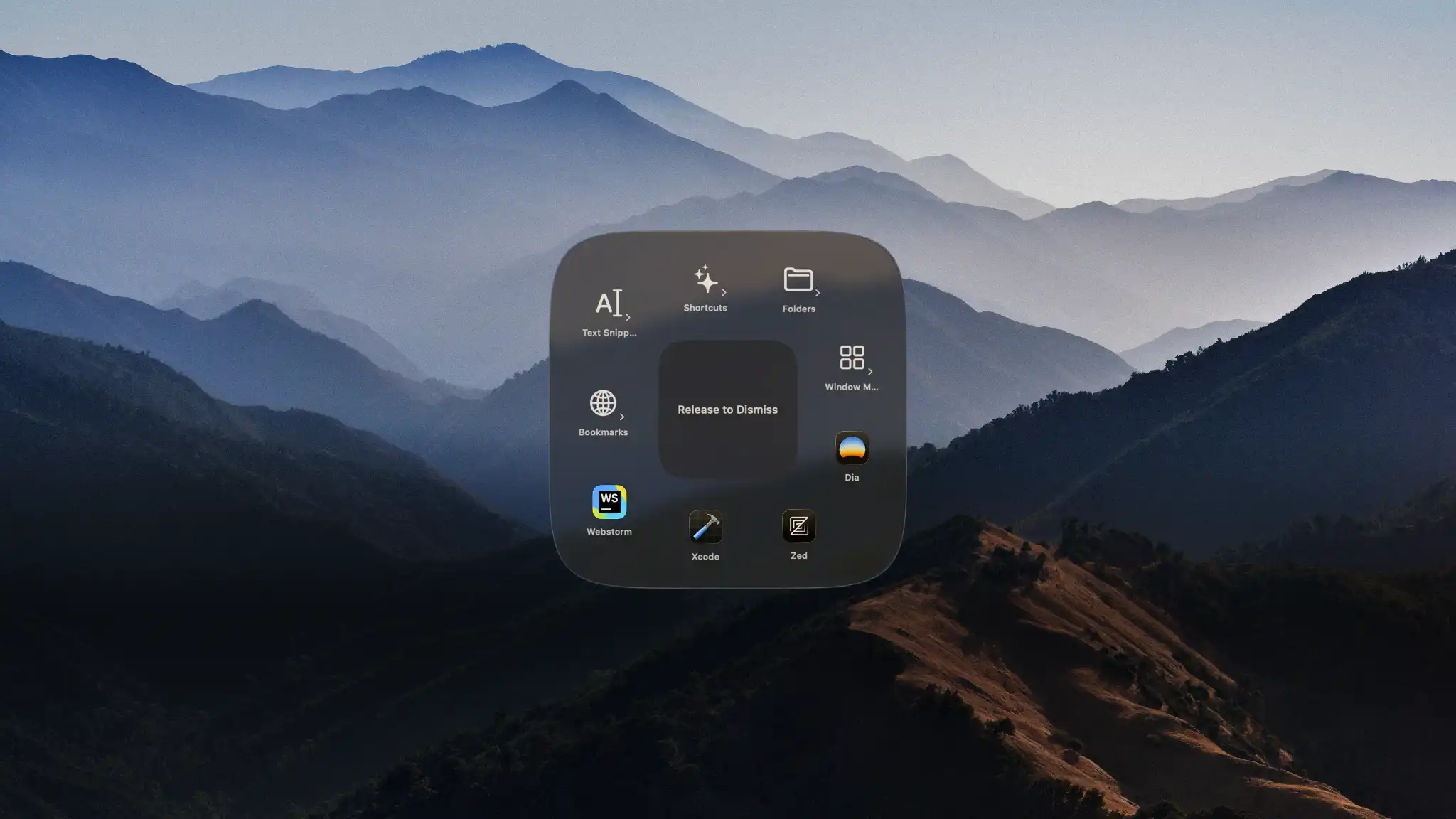
Shape
Choose the shape of the Radial menu:
- Circle — Classic radial menu
- Squircle — Alternative menu style with a beautiful squircle shape (blend between a square and a circle)
Layout
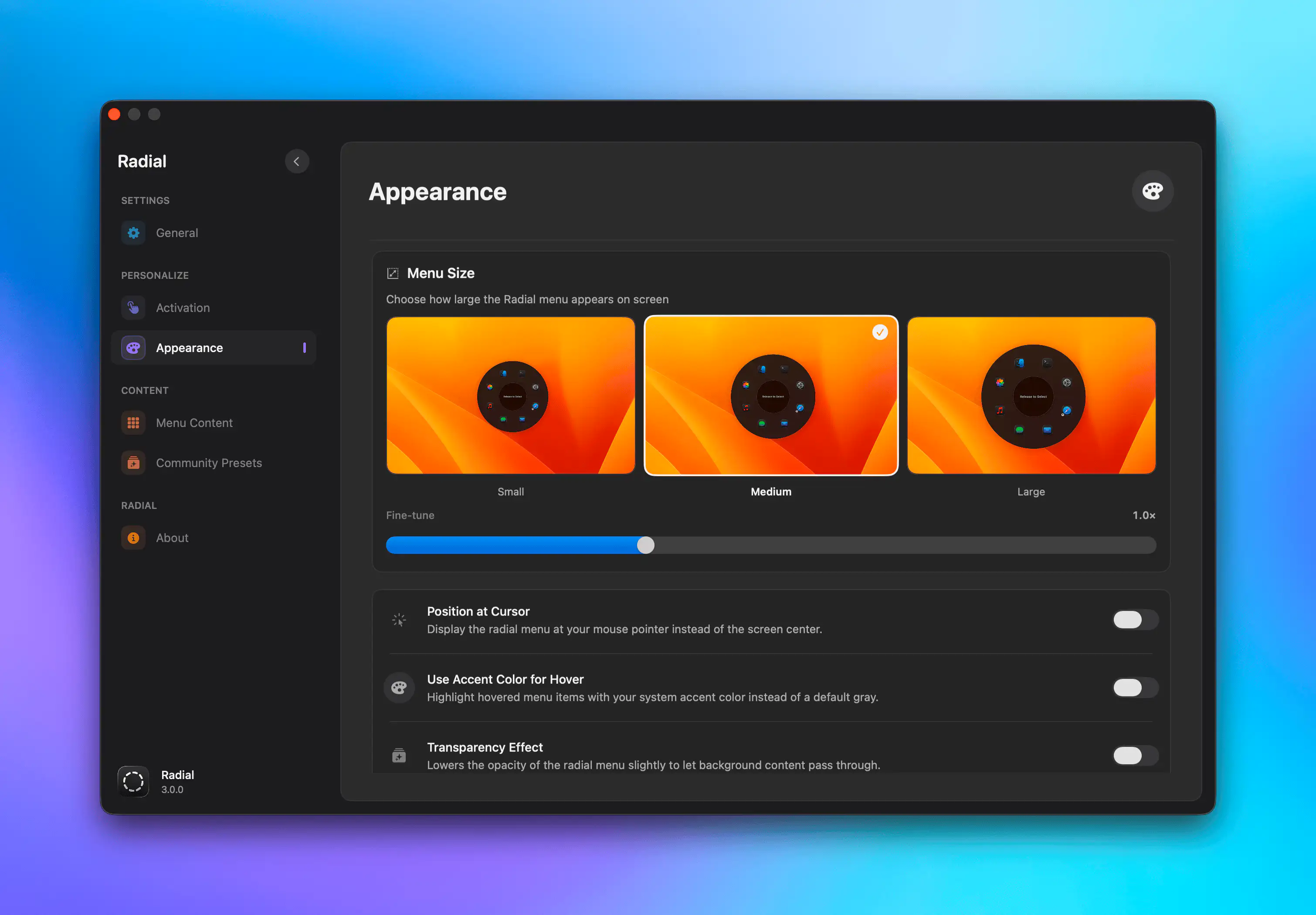
Menu Size
Adjust the overall size of the radial menu to fit your screen and usage style.
- Small — Compact and space-efficient
- Medium — Default balanced size
- Large — Larger targets and improved visibility
- Custom — Define your own size
Position at Cursor
Show the radial menu at your mouse pointer instead of the screen center for faster access.
Center Settings Icon
Show or hide the settings icon in the center of the radial menu.
Labels Below Icons
Display shortcut names beneath their icons for easier identification at a glance.
Visual Style
Liquid Glass
Apply a Liquid Glass material to the menu, giving it a translucent, glass-like appearance that reflects the content behind it on macOS Tahoe or later.
Atmosphere
A beautiful background effect that sits behind the Radial menu. Blurs and subtly tints the content behind the menu, with configurable grain and an ambient glow effect. Draws focus to the menu without taking away what you were working on.
Animation Speed
Control how fast the menu opens and closes:
- Slow — Smooth and deliberate
- Normal — Default balanced speed
- Fast — Snappy and quick
- Instant — No animation
Accent Color on Hover
Use your system accent color to highlight hovered items instead of the default gray.
Desaturated Icons
Mute app and action icons to a grayscale style for a more uniform, minimal look.
Interaction
Haptic Feedback
Enable tactile feedback when hovering over shortcuts (on supported trackpads).
Macro Customization
Personalize your macros for clarity and quick recognition.
Names
Give macros clear, descriptive names that help you remember what they do.
Good names:
- "Export for Web"
- "Open Work Apps"
- "Email Signature"
Avoid:
- Generic names like "Macro 1"
- Vague names like "Thing"
- Placeholder text like "asdf"
Icons
Choose icons that visually represent each macro's purpose.
Icon sources:
- App icons
- System SF Symbols
- Emojis
- Custom images
Tips:
- Use consistent icon styles within a menu
- Choose recognizable, simple symbols
- Avoid overly complex or detailed icons
- Test visibility at the menu size you use