App-Specific Shortcuts
Radial adapts to the app you're using. Have different macros appear depending on which app is active.
What It Does
Radial automatically switches to show different macros based on which app is currently active. This means you can have a Photoshop workflow when editing images, a VS Code workflow when coding, a Premiere Pro workflow when editing videos, and much more, all without manual switching.
How It Works
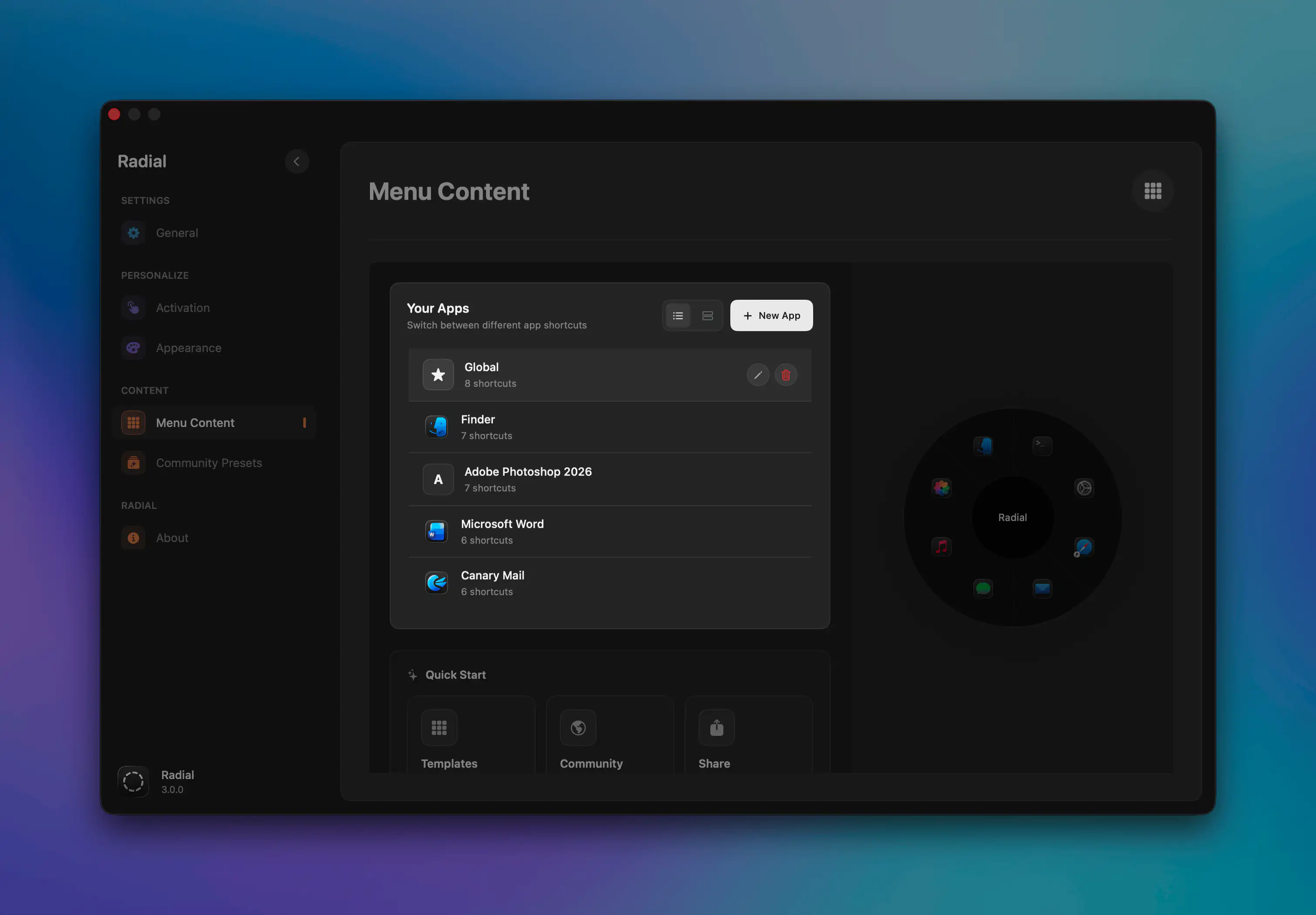
When you create an application profile in Radial, you can add macros to that specific application. Those macros will only appear in your Radial menu when that application is in the foreground. This keeps your workspace clean and shows only relevant tools for your current task.
Setting Up App-Specific Shortcuts
Create App-Specific Shortcuts
- Navigate to the Menu Content tab in the sidebar
- Select the app you wish to create the shortcut for in the Your Apps section, or add one if needed
- Scroll down to the Shortcuts section and press Add Shortcut
- Create your macro and save it. For more information, check out Creating Your First Shortcut
The shortcut will now only show when that app is in the foreground.
Global vs. App-Specific
- Global macros — Shortcuts appear in all applications that don't have a custom menu defined
- App-specific macros — Shortcuts appear only when the assigned application is foreground
Common Use Cases
Photoshop
- Export for Web
- Duplicate Layer
- Merge Layers
- Color Grading
- Create Smart Object
- Toggle Rulers/Guides
- Save for Web
Premiere Pro, DaVinci Resolve, Final Cut Pro
- Add Marker
- Ripple Delete
- Nest Sequences
- Export Queue
- Color Grade Preset
- Audio Sync
VS Code, Xcode, IntelliJ
- Format Document
- Code Snippets
- Clipboard History
- Toggle Terminal
- Git Commit
- Find in Files
- Run/Debug
- Multi-cursor Edit
Safari, Chrome, Firefox
- New Incognito Window
- Clear Cache
- Bookmark Page
- Take Screenshot
- Open DevTools
- Close Other Tabs
Slack, Teams, Discord
- Set Status
- Quick Reply Templates
- Mark All as Read
- Start Call
- Search Messages
Word, Pages, Notion
- Insert Date
- Word Count
- Version History
- Export to PDF
- Toggle Focus Mode
- Insert Template
Global
- App Launcher
- Emoji Picker
- Window Manager
Pre-Built App Presets
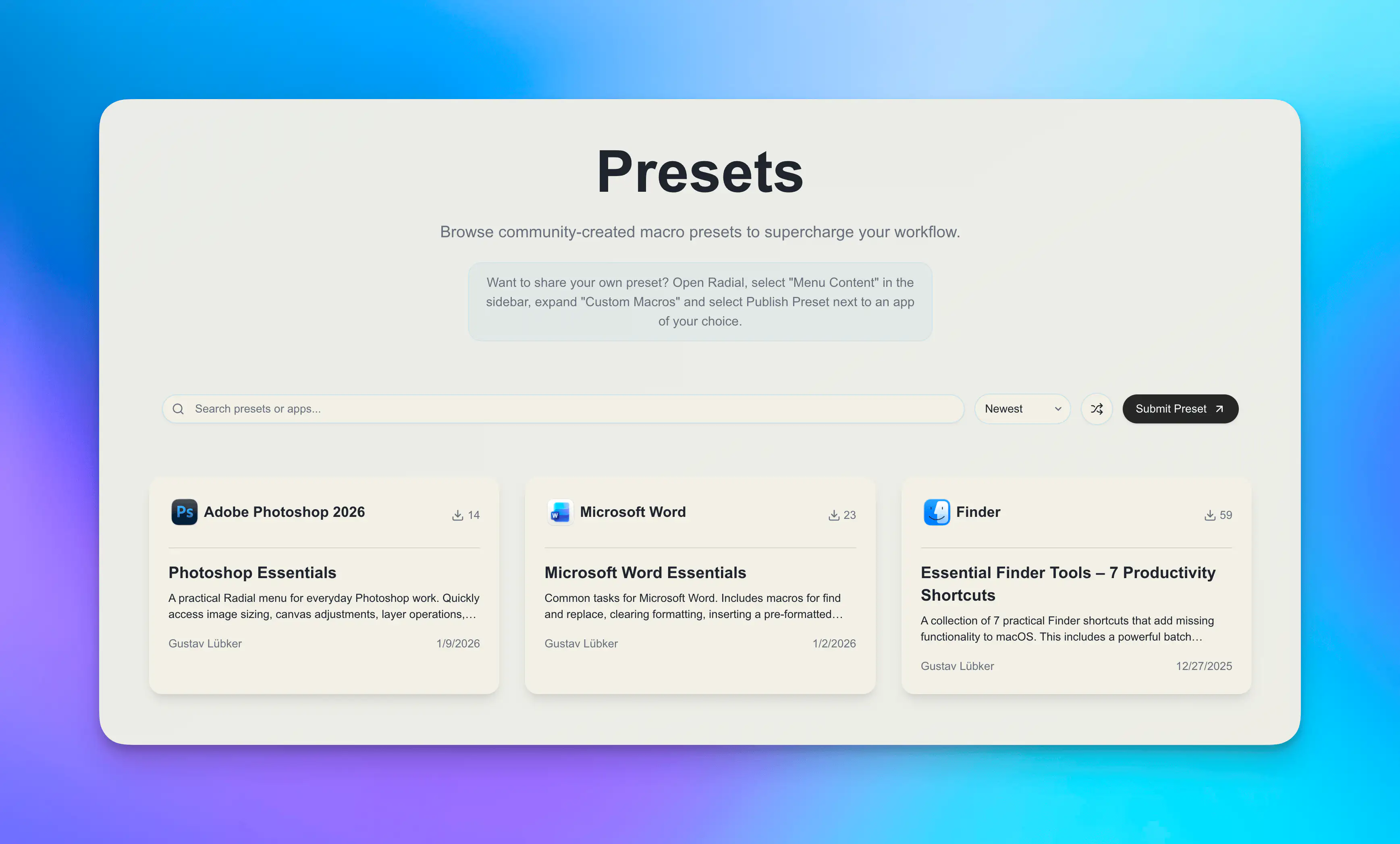
Don't want to build from scratch? Download community-created presets for popular apps:
Browse all presets at: radial.appverge.net/presets
Tips for Effective App Workflows
Focus on repetitive tasks — Automate actions you do frequently in each app, not everything.
Consistent positioning — Place similar actions (like "Save" or "Export") in the same position across different apps for muscle memory.
Start with presets — Download existing presets and customize them to your needs rather than starting from scratch.
Name clearly — Use descriptive names and fitting icons that are easily recognizable when you see them in an app.
Proud of a workflow? — Share it with the community from inside the app. They'd love to see it and can help them find inspiration.