Sub-Menus
Organize your shortcuts into nested menus for a cleaner, more focused Radial experience.
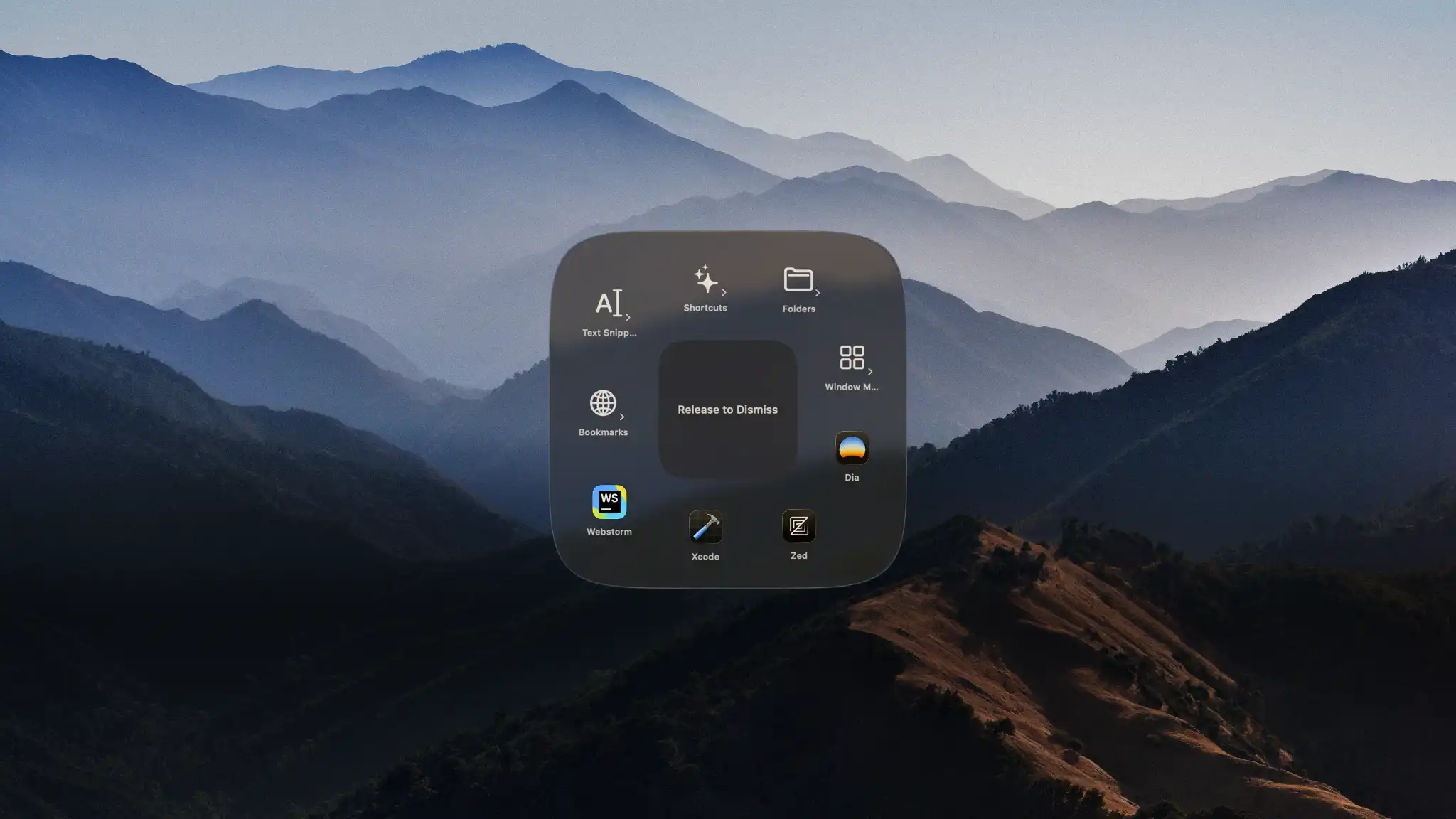
What They Are
Sub-menus let you group related shortcuts together behind a single entry in your Radial menu. Instead of cramming everything into one menu, you can nest actions logically. This may include a "Work" shortcut that opens into a menu of work-related actions, a "Media" shortcut that expands into playback controls, a "Bookmarks" shortcut that shows all of your favorite apps, websites, documents, and so on.
Adding a Sub-Menu
Sub-menus are added just like any other action, under Menu Content:
- Open the menu you want to add a sub-menu to
- Add a new item and select Sub-Menu as the action type
- Radial automatically creates a new linked menu
- Open that menu and add whichever shortcuts you need
Selecting the sub-menu shortcut from the Radial menu opens the nested menu, replacing the current view. Navigate back at any time to return to the parent menu.
Tips
Keep sub-menus focused — A sub-menu works best when all its items share a clear theme. If you find yourself adding unrelated shortcuts, it's probably a separate menu.
Name them clearly — Since the sub-menu item acts as a label for everything inside, give it a name that describes the group: "Writing Tools", "Text Snippets", "Web Bookmarks".