Window Layout Action
Instantly arrange your apps exactly where you want them with a single shortcut.
What It Does
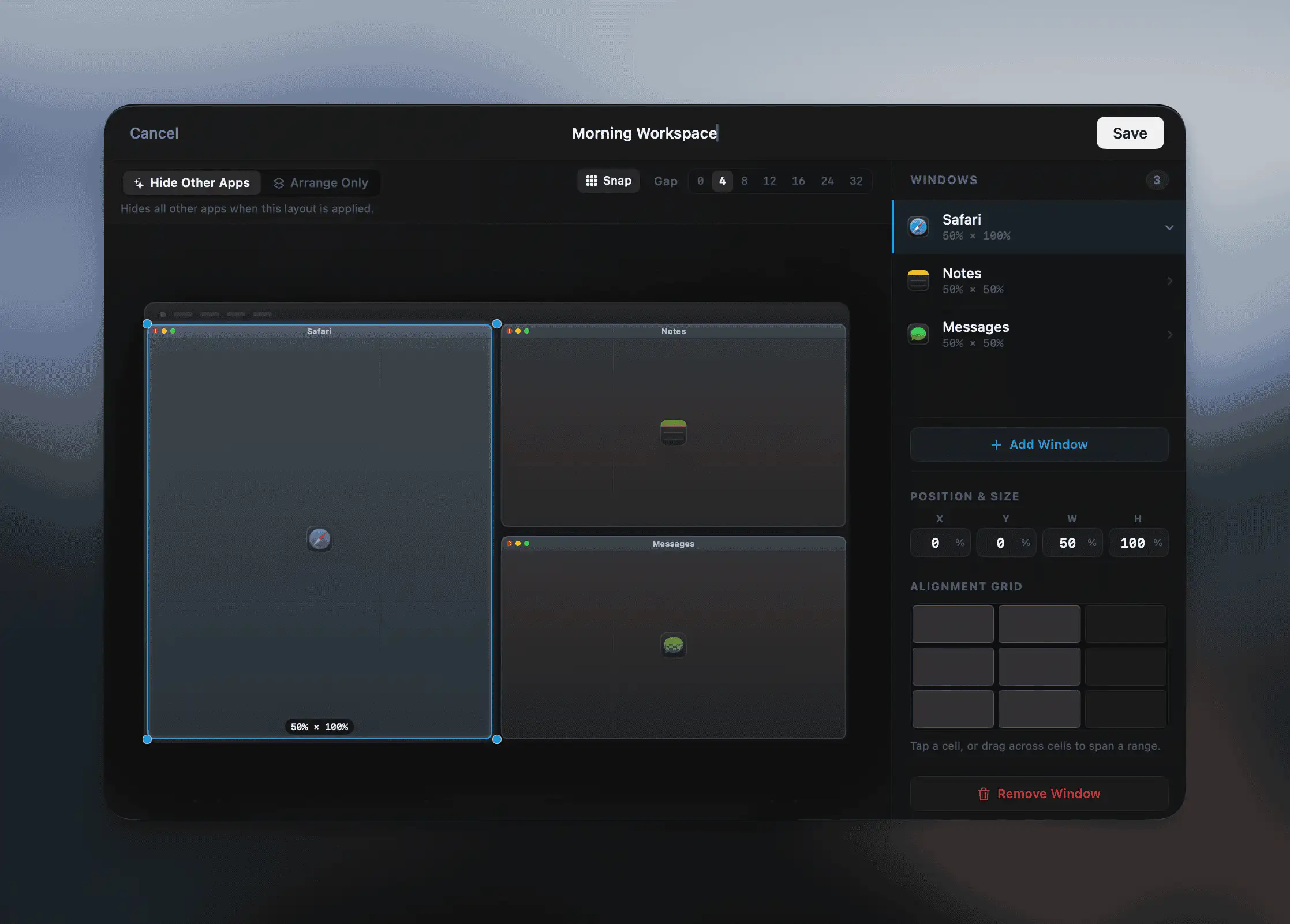
The Window Layout action lets you define a precise arrangement of apps and their positions on screen. Run it and every app snaps into place — Safari on the left half, Notes top right, Slack bottom right, whatever setup you need.
Building a Layout
Add as many apps as you need to your layout. For each app, define:
- App — Which application to position
- Position — Where it should appear on screen (left half, top right quarter, full screen, etc.)
When the action runs, Radial opens each app if it isn't already running and moves its window to the defined position.
When to Use It
- Switching between work modes (focus, communication, research)
- Starting your day with everything in the right place
- Jumping into a meeting setup with one shortcut
- Resetting a cluttered desktop in one tap
Tips
Combine with other actions — Trigger a layout as part of a larger macro, for example opening a URL and arranging your windows in one go.
Make multiple layouts — Create separate macros for different workflows: a writing layout, a coding layout, a meetings layout.